Copy Excel File Paths in One Click
Free Excel add-in for sharing network files. Create clickable links or copy UNC paths instantly.
What CopyLink Does
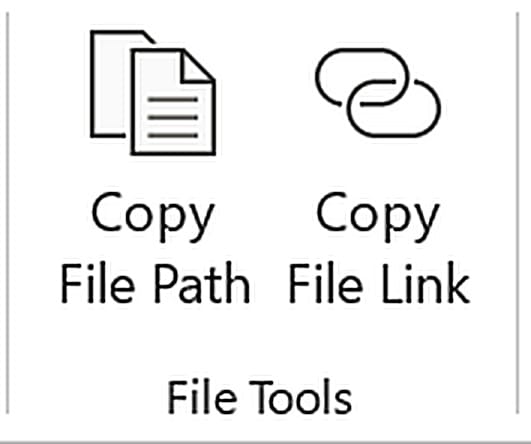
CopyLink adds two buttons to your Excel ribbon that make sharing network files effortless.

Button 1: Copy File Path
Copies the plain UNC network path
When you paste into an email, you get:
Features:
- 100% reliable everywhere
- Works in Outlook Web, Gmail, any email
- Automatically converts mapped drives (Z:\) to UNC paths
- Perfect for maximum compatibility
Button 2: Copy File Link
Creates HTML-formatted clickable link using filename
When you paste into desktop Outlook, you get:
Features:
- Clean, professional appearance
- Works perfectly in desktop Outlook
- Also converts mapped drives to UNC
- Falls back to plain text in Outlook Web
Both Buttons Do This Automatically:
✓ Convert mapped drives to UNC paths
✓ Work with any network file
✓ Handle spaces correctly
✓ Show helpful status messages
How the Excel Add-in Works
When you open an Excel file on a network share, CopyLink's buttons appear on your Home ribbon. Simply click the button you need, and the file path is instantly copied to your clipboard.
If your file is stored on a mapped network drive (like Z:\ or Y:\), CopyLink automatically converts it to the full UNC network path that everyone can use. No more broken links when sharing files via email.
The add-in works completely offline and doesn't send any data anywhere. It simply reads your Excel file's location and formats it correctly for sharing in Outlook, Gmail, or any email client.
Why You Need a File Path Copy Tool
Microsoft removed the easy way to copy network file paths from Excel
The Daily Frustration
You need to share an Excel file location with a coworker via email, so you manually type out the whole file path:
Then they reply: "The link doesn't work, it's trying to open Z:\department\projects..."
Mapped drives don't work for everyone.
Why Is Copying File Paths So Hard?
Microsoft removed the easy "Copy as path" option for network files in Excel. Now if you want to get the file path, you have to:
- Open File Explorer
- Navigate to the file
- Right-click with Shift held down
- Hope the path is correct
- Manually type it into email
CopyLink's file path button fixes this in one click.
Download CopyLink
Free Excel add-in for Windows. No sign-up required. Works with Excel 2010, 2013, 2016, 2019, 2021 & Microsoft 365.
Automatic Installer RECOMMENDED
Easiest way to install. Handles everything automatically.
CopyLink-Setup.exe • 2.1 MB
Manual Installation
For IT administrators or users who want more control.
CopyLink.xlam • 45 KB
How to Install the Excel File Path Add-in
Download the Installer
Click "Download Installer" above and save CopyLink-Setup.exe to your computer.
Run the Installer
Double-click the file to start installation. No admin rights needed.
⚠️ Windows Security Warning
Windows will show "Windows protected your PC" because this installer isn't digitally signed (signing costs $200+/year).
To proceed: Click "More info" → Click "Run anyway"
The code is safe and open source. You can review it on GitHub.
Enable the Add-in
Open Excel → File → Options → Add-ins
At the bottom: Manage: Excel Add-ins → Go
Check the box next to CopyLink → Click OK
Done!
The buttons will appear on your Home tab in the "File Tools" group.
Common Questions
\\server\share\folder\file.xlsxMapped network drives like
Z:\folder\file.xlsx only work on your computer because your Z: drive might be someone else's Y: drive or not mapped at all. When you share a file path in email using mapped drives, the link breaks for other people.CopyLink automatically converts mapped drives to UNC paths so your file links work for everyone on your network.
If CopyLink saves you time and frustration, consider buying me a coffee ☕ to support continued development and maintenance.